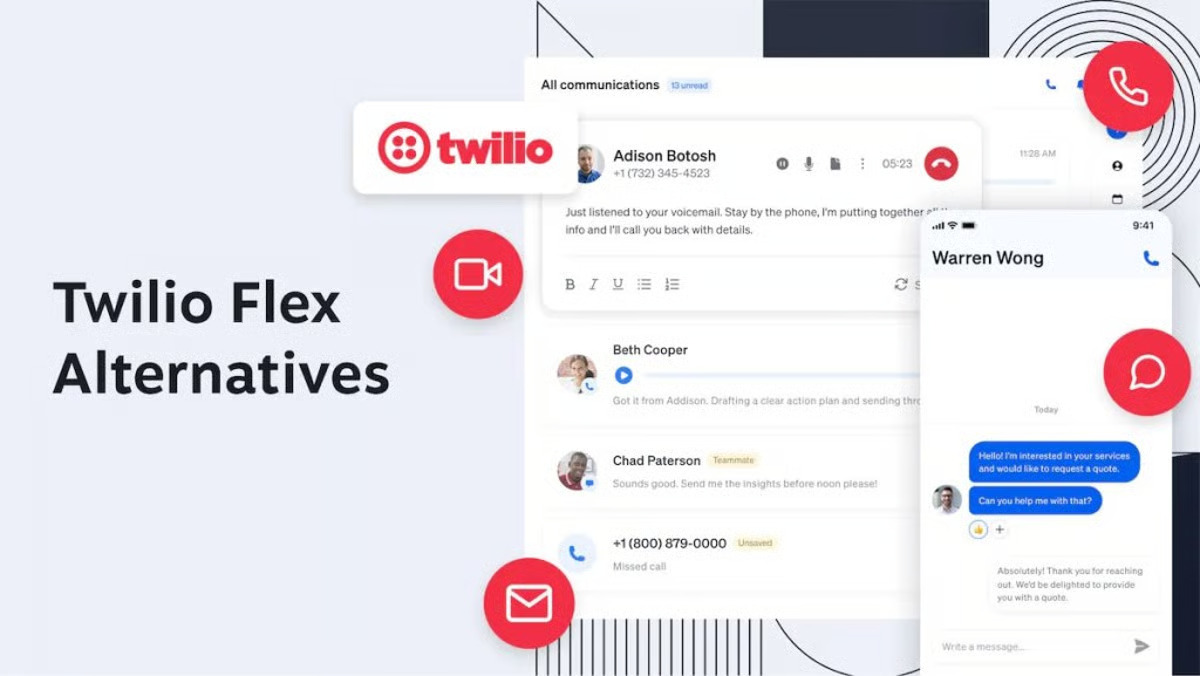
Twilio Flex makes it surprisingly fast to go from a blank account to a fully branded, omnichannel contact center that feels like it was built just for your business. In this Twilio Flex demo tutorial, you’ll walk from first login to a branded agent desktop that you can confidently show to stakeholders or clients.
What is Twilio Flex and why use a demo?
Twilio Flex is a cloud‑based, programmable contact center platform that bundles telephony, routing, and a ready‑made agent desktop UI into one product. Instead of building your own contact center from scratch, you get a hosted instance that you can customize with plugins, themes, and integrations.
Running a Twilio Flex demo helps you:
-
Prove out omnichannel capabilities like voice, SMS, and web chat before a full rollout.
-
Show a “day in the life” for agents, supervisors, and admins with minimal setup.
-
Test call flows, branding, and workflows with real users on a trial account before committing budget.
For this tutorial, we’ll assume you want a practical, Google‑indexable walkthrough using the keyword “twilio flex demo” naturally throughout the article.
Step 1: Create your Twilio Flex account and log in
To start any Twilio Flex demo, you first need a Twilio account and a Flex project. You can do this even on a free trial, which is perfect for quick prototyping and testing.
Follow these steps:
-
Sign up or sign in
-
Go to the Twilio Console and sign in, or create a free trial account if you don’t have one.
-
Verify your phone number and complete any required identity steps for the trial.
-
-
Navigate to Flex
-
In the Twilio Console sidebar, find and click Flex to open the Flex Overview page.
-
Choose the option to Add Flex or Create My Flex Project, depending on the UI version you see.
-
-
Name and create your Flex account
-
Give your Flex account a recognizable name (for example, “Demo Contact Center” or “ClientName Flex POC”).
-
Finish the creation flow; Twilio will provision a new Flex instance and assign you the Account Owner / Administrator role automatically.
-
-
First login to Flex UI
-
Once setup completes, you’re redirected to the hosted Flex contact center UI in your browser.
-
As the account owner, you can immediately see the agent desktop and admin views, depending on permissions.
-
This is the point at which your twilio flex demo officially begins: you now have a live cloud contact center you can show on screen.
Step 2: Understand the default Twilio Flex experience
When Flex first loads, it comes with a “vanilla” configuration and a basic sample workflow. That’s intentional—Twilio gives you a working baseline that you can quickly configure and then expand via plugins.
Key things you’ll notice in your first Twilio Flex demo login:
-
Agent desktop layout: A left navigation bar, a task list, a main interaction panel, and controls for accepting or rejecting tasks (calls, chats, etc.).
-
Sample tasks: Flex automatically creates starter tasks and guides to help you explore calling, SMS, and web chat.
-
Admin controls: As an admin, you can switch views to configure channels, users, queues, and routing rules.
This default layout is ideal for demos because you can immediately simulate real‑world interactions without writing code. For example, you can place a test call to your trial phone number or send a test SMS and watch a new task pop up in the agent UI.
Step 3: Test voice, SMS, and web chat in your demo
Before you worry about branding and advanced plugins, make sure your twilio flex demo proves that basic channels work as expected. Twilio Flex ships with sample flows for voice, SMS, and chat that you can test within minutes.
-
Test voice calls
-
Your Flex trial account is automatically assigned a US phone number that you’ll see in the Flex UI or Twilio Console.
-
Use a regular mobile phone to call that number; a new task appears in the Flex Task List, and you can accept it from the agent desktop.
-
-
Test SMS
-
Send a text message to the same trial number (or another configured number).
-
The message arrives as a new task in Flex, and the agent can respond directly from the UI.
-
-
Test web chat
-
Use the “Launch Webchat” button or a sample widget depending on your setup.
-
Start a chat conversation in another browser tab and accept it in the Flex agent desktop.
-
These live tests make your Twilio Flex demo feel tangible: stakeholders can see tasks appear in real time, watch how agents handle multiple channels, and understand how routing works.
Step 4: Add users, roles, and SSO (optional but impressive)
For a more realistic twilio flex demo, show how easy it is to onboard new agents and admins. Flex’s admin guide walks through adding users and assigning different permission levels.
-
Add administrators and supervisors: As the original account owner, you can create additional admin users who can manage queues, routing, and reporting.
-
Add agents: Create agent identities that can log in separately and receive tasks, which is useful if you’re demoing multiple roles live.
-
Configure SSO: If you integrate single sign‑on, employees can access Flex directly from your SSO portal instead of separate credentials.
Once SSO is configured, agents can also launch Flex via a direct URL such as https://flex.twilio.com/<FLEX_DOMAIN>?path=/agent-desktop in Chrome. This makes your demo look polished and production‑ready instead of just a developer test.
Step 5: Brand your Twilio Flex UI with themes
A big part of this “Twilio Flex Demo Tutorial: From First Login to Fully Branded Contact Center” is showing how quickly the UI can match your company’s look and feel. Twilio Flex includes built‑in theming and styling options, plus deeper customization via the Programmable UI.
In the Flex admin interface, you can:
-
Choose from predefined themes that change the base colors and styling of the UI.
-
Apply your brand colors (primary, secondary, and accent) to navigation bars, buttons, and highlights.
-
Adjust backgrounds, transparency, and other visual elements through theme JSON configurations if you need more granular control.
Under the hood, your choices generate a JSON object representing the theme, which Flex uses to style the UI. For many twilio flex demo scenarios, you can achieve a “fully branded” look just by configuring the admin theming panel and uploading your branding assets.
Step 6: Customize the UI with Flex Plugins
Branding alone is powerful, but the real magic of Twilio Flex is in its programmable UI and plugin architecture. Plugins let you add panels, change layouts, modify behavior, or integrate with CRMs all from a controlled, versioned codebase.
High‑level steps to start with plugins:
-
Set up your development environment
-
Install the Twilio CLI and log in using
twilio login, providing your Account SID and Auth Token from the Twilio Console. -
Install the Flex Plugins CLI and initialize a new plugin project using the official quickstart guide.
-
-
Create a simple UI extension
-
Add a custom component, such as a “Customer Summary” panel or a “Demo Notes” widget for your twilio flex demo.
-
Use the Flex UI API to hook into existing areas like the agent desktop, task canvas, or side navigation.
-
-
Deploy your plugin
-
Build and deploy the plugin so it appears in your hosted Flex instance.
-
Enable the plugin in the Flex Admin UI, then refresh your agent desktop to see the new branded elements and functionality.
-
Twilio’s own “Flex UI and Flex Plugins” documentation offers a clear overview of what you can customize: themes, localization, native channels, task behaviors, and more. This is where a basic twilio flex demo transforms into a tailored contact center that mirrors your actual business workflows.
Step 7: Make your contact center demo feel real
Once your Flex instance is branded and you’ve added at least one plugin,
it’s time to polish the experience so it feels like a real contact center—not just a sandbox.
To do that, focus on:
-
Realistic queues and skills
-
Configure queues for departments like Sales, Support, or VIP, and assign skills to agents so tasks route intelligently.
-
-
Sample scripts and call reasons
-
Prepare short call scripts and common customer scenarios to walk through live during your twilio flex demo.
-
-
Supervisor and admin views
-
Show how a supervisor can monitor tasks, manage workloads, and adjust routing using the admin tools.
-
An example flow you can present:
-
A customer calls the demo number about a billing issue, the IVR (if configured) routes to “Billing Support,” and the task is assigned to the next available agent in that queue.
-
The agent sees the caller’s name, interaction history (if integrated), and a custom panel showing CRM data from your plugin.
-
After resolving the issue, the agent updates wrap‑up codes, and the task is completed.
This kind of scenario keeps your twilio flex demo grounded in real business value rather than just showing screens.
Step 8: Best practices for a Twilio Flex demo that impresses stakeholders
To make your demo not only technically sound but also persuasive, keep a few best practices in mind.
-
Start from the agent’s perspective
Show how easy it is for a new agent to log in, accept tasks, and use the interface without heavy training. -
Highlight speed to value
Emphasize that you went from account creation to a fully branded, working contact center in a short amount of time, thanks to Flex’s hosted infrastructure and programmable UI. -
Tie features back to outcomes
Connect every feature you show—multi‑channel routing, theming, plugins—to business outcomes like faster deployment, better customer experience, and lower operational complexity. -
Show the path from demo to production
Briefly outline how what they’re seeing in this twilio flex demo can evolve into a production rollout: add more channels, integrate your CRM, refine routing, and harden security and compliance.
If you need deeper technical details or want to explore advanced scenarios,
Twilio maintains an extensive Flex documentation center covering account setup,
UI customization, and deployment patterns.
More Article: Twilio Flex Demo Use Cases: Showcasing Omnichannel Customer Support in Action
Conclusion: From first login to fully branded Flex
By following this Twilio Flex Demo Tutorial, you can confidently go from your first login to a fully branded, plugin‑enhanced contact center that clearly demonstrates Twilio Flex’s potential for your business or clients. You sign in,
create your Flex project, test voice/SMS/chat, add users, brand the UI,
and layer on custom plugins to deliver a compelling twilio flex demo that looks and feels production‑ready